Help & setup guide
A quick checklist to get Garden Macro running smoothly. Go through these once before you press Start, and you'll be auto-buying seeds in under a minute.
Before you start
-
Rejoin the game
Before each run, rejoin Grow a Garden for a clean start. A fresh rejoin puts the shop and your character in a known state, so the macro lines up correctly.
-
Set your display to 1920×1080
The macro clicks fixed spots on the screen, so it's tuned for a 1920×1080 resolution. Other resolutions can make it click the wrong place and miss the shop. In Windows, set your display resolution to
1920×1080and run Roblox before starting. -
Start the macro inside the shop UI
Open the in-game shop menu and keep it on screen, then press Start while you're inside the shop UI. The macro works from within the open shop, so make sure it's showing before you start.
-
Turn on "UI navigation toggle"
In Roblox, open Settings → View & Controls and set UI navigation toggle to On. The macro uses the
\key to move through the shop menu, and that only works when this setting is enabled.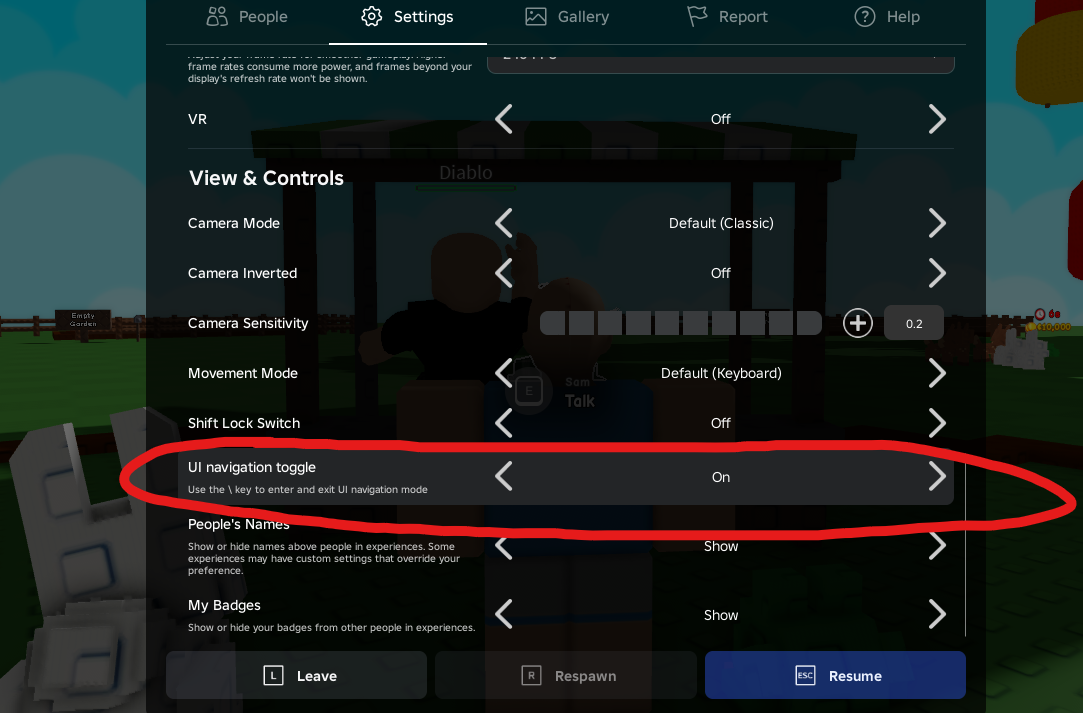
Roblox Settings → View & Controls — make sure UI navigation toggle is On. -
Launch Roblox first
Open Grow a Garden and load into your garden before you start the macro. When you press Start, the macro focuses the Roblox window, opens the shop, and begins buying the seeds you ticked — then re-buys them automatically on every restock.
Need help or found a bug?
The fastest way to get help, report a problem, or suggest a feature is our Discord. Come say hi — we're happy to walk you through setup.
Join the Garden Macro Discord
Setup help, bug reports, updates, and the community.
Quick troubleshooting
It clicks the wrong spot or doesn't open the shop. Double-check your resolution is
1920×1080 and that you're standing in front of the shop facing it.
It opens the shop but doesn't move through the menu. Make sure UI navigation toggle is set to On in Roblox settings (see above).
"Roblox window not found." Launch Grow a Garden and load into the game first, then press Start.
Still stuck? Ask in the Discord and we'll help you out.